|
Last Updated |
May 2026 |
|
Audience |
IT Admins, Operations, XR Program Managers |
|
Related Links |
Overview
Meta Horizon Managed Services (HMS) is Meta's enterprise device management platform for Meta Quest headsets. As of February 20, 2026, HMS is free for all organizations. This article walks through two key tasks:
- Part 1 – Creating and configuring a Meta Horizon Managed Device (HMS) account for your organization.
- Part 2 – Adding Attain as a development partner so they can distribute a private app to your managed devices.
|
⚠️ Important: HMS is Required for All New Device Enrollments Since Meta firmware v74 (late February 2025), all Meta Quest devices must be enrolled through Meta Horizon Managed Services to be managed by any MDM — including third-party providers. It is no longer possible to enroll devices via developer mode or sideloading. |
Prerequisites
Before you begin, make sure you have the following:
- A work email address (personal Gmail/Outlook accounts may not be accepted)
- Your organization's name and country of domicile
- Administrator age requirement: you must be 18 or older
- Two-factor authentication method ready (authenticator app or SMS)
- Attain's Organization Key or the app-sharing link for ongoing support
PART 1
Setting Up Your Meta Horizon Managed Device Account
Complete the following steps to create and configure your HMS organization:
|
1 |
Create your HMS account Navigate to the sign-up page and register with your work email. |
|
2 |
Verify your email and set up 2FA Confirm your email address and secure your account with two-factor authentication. |
|
3 |
Enter organization details Provide your company name, country, and accept the Terms of Service. |
|
4 |
Access Admin Center & Device Manager Explore the two main management surfaces in HMS. |
|
5 |
Invite team administrators Add other Attain (or other support teams) as admins who will manage devices and content. |
Step 1 – Create Your HMS Account
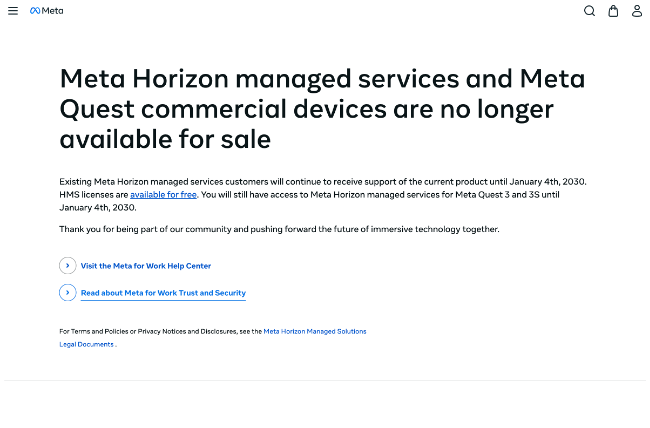
- Go to: https://forwork.meta.com/meta-horizon-managed-solutions/sign-up/
- Click the “available for free” link on the page.
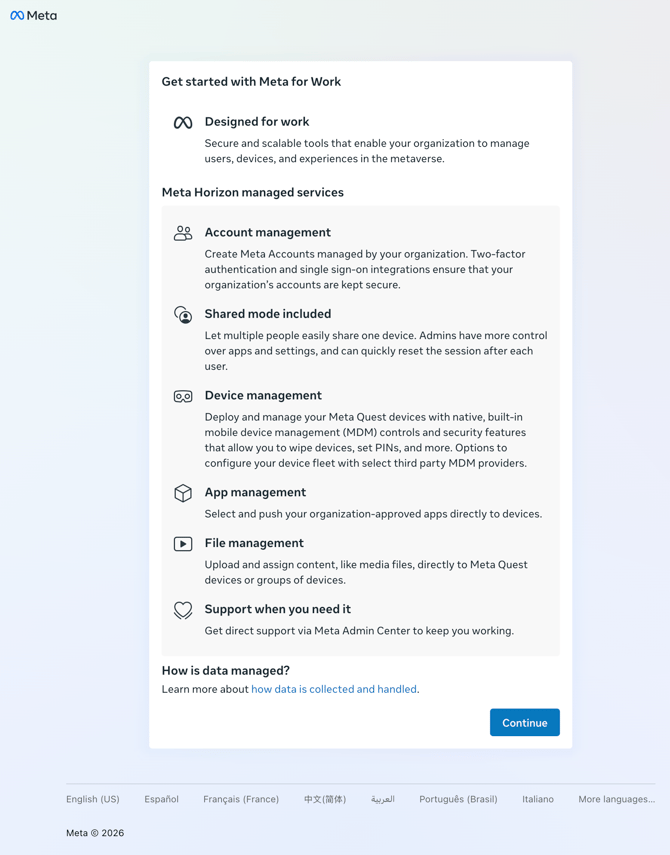
- A country selector appears. Select your organization's country from the dropdown, then click Get started.
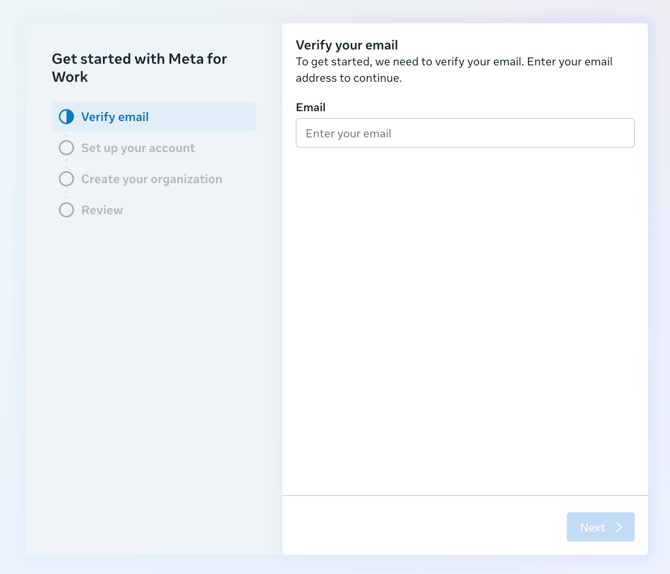
- Enter your work email address in the Email field, then click Continue.
|
ℹ️ Already Have an Admin Center? If your organization has already set up an Admin Center, you will be prompted to request access from your existing administrator rather than creating a new account. Contact your organization's HMS admin to send you an invitation. |
Step 2 – Verify Email and Set Up 2FA
- Meta will send a 6-digit verification code to the email address you entered. Check your inbox (and spam folder).
- Enter the code in the Verification code box on screen, then click Verify.
- You will be prompted to choose a two-factor authentication (2FA) method:
- Authenticator app (recommended)
- SMS / text message
- Follow the on-screen instructions to complete 2FA setup, then click Next.
Step 3 – Enter Organization Details
- On the organization details form, fill in:
- Organization name (this will be visible to managed users)
- Industry / sector
- Organization size
- Read and agree to the Meta for Work Terms of Service by checking the checkbox.
- Click Continue. Your HMS organization account is now created.
|
✅ Account Created You will land on the HMS dashboard. From here you can access both the Admin Center (for user and account management) and Device Manager (for device enrollment and configuration). |
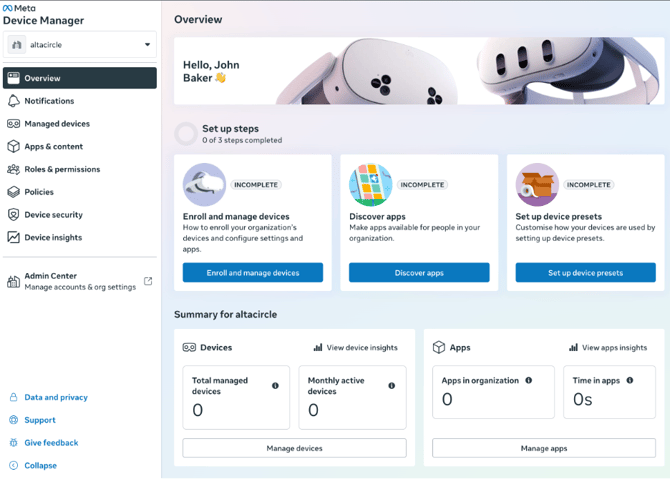
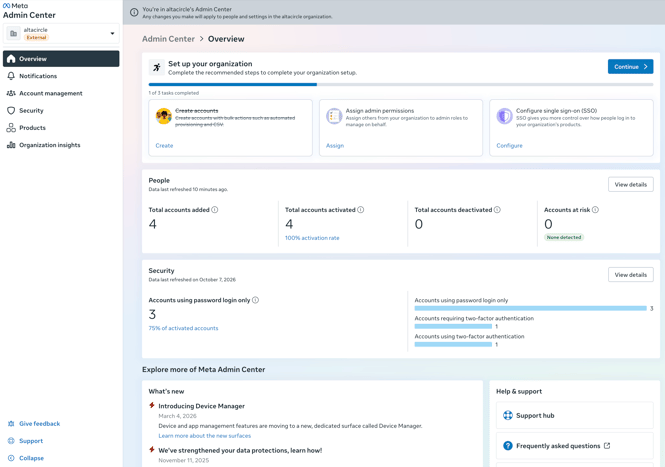
Step 4 – Familiarize Yourself with Admin Center and Device Manager
HMS provides two primary management surfaces:
|
Surface |
Purpose |
|
Admin Center |
Manage user accounts, create managed Meta accounts in bulk, configure SSO with identity providers, and view adoption dashboards. |
|
Device Manager |
Enroll devices, set device presets, bulk-provision configurations, configure Wi-Fi certificates, request PIN resets, and manage third-party MDM enrollments. |
Admin Center:
Device Manager: