Skip to content
English
  • There are no suggestions because the search field is empty.

How to Use the Pratt & Whitney PT6 Familiarization and GVI VR Application

Quick How-To Guide

What is the PT6 Engine Application?

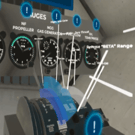
The PT6 is an immersive VR experience designed to introduce the Pratt & Whitney PT6A engine through interactive exploration and hands-on training. The application includes two learning modules that provide foundational knowledge of the engine's components and fuel system through guided instruction, practice activities, and assessments.

Application Overview

PT6 includes two interactive learning modules.

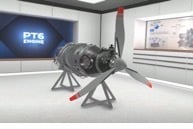
1. Engine Familiarization

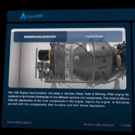
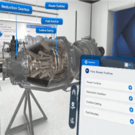
Simulates a full-size virtual Pratt & Whitney PT6A engine to introduce the engine's major sections and components. Explore the engine inside and outside to learn the function of individual components and understand the potential implications of component failures.
2. Fuel System

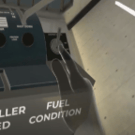
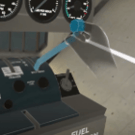
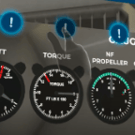
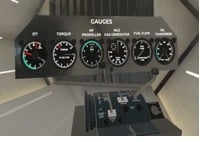
Simulates a full-size virtual Pratt & Whitney PT6A engine to demonstrate how the engine fuel system operates. Learn how fuel flows through the engine, interpret engine gauges, and operate the power, propeller, and fuel control levers through guided instruction of an engine run-up.

1. Navigating the VR App

These controls are used throughout the app for movement, interaction, and activity completion, and can be performed using either the controllers or with hand tracking.

Move Around the Environment

Using Controllers:
  • Push forward on the thumbstick to activate teleportation.
  • Aim at your desired location — a blue circle shows where you land.

      Release the thumbstick to move to that location.


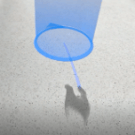
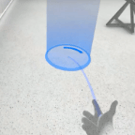
      Using Hand Tracking:
      • Hold your palm facing upward.
      • Point toward the floor with your index finger.
      • Aim at your desired location — a blue circle shows your destination.

            Wait for it to load to move to that location.


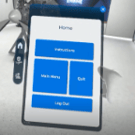
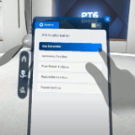
            Using the Tablet

            Using Controllers:
            • Press the A or X button to open or close the tablet.
            • Press and hold the Grab button to reposition the tablet.

                Release the Grab button to place the tablet in the desired position.


                Using Hand Tracking:
                • Hold your palm facing toward you to open or close the tablet.
                • Wait for the loading indicator to complete.
                • Grab the side of the tablet and move it to the desired position.
                • Release the tablet to place it in position.

                        Release the tablet to place it in position.


                        Grab Objects

                        Using Controllers:
                        • Hover your virtual hand over an interactive object
                        • Press and hold the grab button (under your middle finger) to pick up and position the object.

                            Release the grab button to let go.


                            Using Hand Tracking:
                            • Hover your hand over an interactive object
                            • Use the indicated hand gesture to grab the object.
                            • Some objects require a tap or pinch gesture, while larger objects may require a fist grab.

                                  Release the grab button to let go.


                                  Press Buttons & Menus

                                  Using Controllers:
                                  • Reach your virtual hand toward a button or menu option.
                                  • Press and hold the Trigger to change your hand to a pointing pose

                                        Tap the button to select.


                                        Using Hand Tracking:
                                        • Point at the desired button, switch, or menu option.
                                        • Extend your index finger toward the button.

                                          Tap the button to select.


                                          2. Access the Application

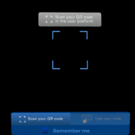
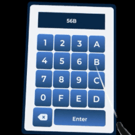
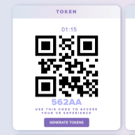
                                          When the application launches, an on-screen keyboard will appear prompting you to enter an access code. This code is provided through the QR Studio Platform after signing in.  
                                          Option 1 – Scan your QR Code (Recommended)
                                          • Ensure the QR Platform remains open and displays the QR code.
                                          • Launch PT6 on the Meta Quest headset.
                                          • If prompted, select Allow to grant permission for PT6 to access Spatial Data and the Headset Camera. This enables the headset to view and scan the QR code displayed on the computer screen.
                                          • Look at the QR code through the headset to scan it automatically.
                                          • Once the QR code has been recognized, the application will continue to the main menu.


                                                    Option 2 – Type your Code
                                                    • Switch to the Type your Code tab.
                                                    • Locate the access code displayed below the QR code on the QR Platform
                                                    • Input the access code using the virtual keyboard.
                                                    • Select Enter to continue into the main menu.


                                                            3. Select a Module

                                                            After connecting to the app, the Main Menu will appear.  

                                                            • Select one of the available modules:
                                                              • Engine Familiarization
                                                              • Fuel System
                                                                    

                                                                  4. Select a Mode

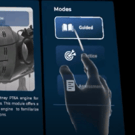
                                                                  Each module includes three learning modes.  

                                                                  • Guided: Complete the module with step-by-step instruction and guided prompts.
                                                                  • Practice: Complete the module independently without guided instruction.
                                                                  • Assessment: Complete the module as a final assessment without guidance.

                                                                        NOTE: Practice and Assessment become available after Guided mode has been completed.


                                                                        5.  Complete the Selected Module 

                                                                        Engine Familiarization
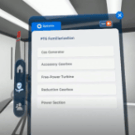
                                                                        • Open the tablet to view the available engine sections.
                                                                        • Select an engine section.
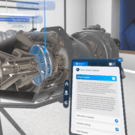
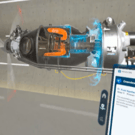
                                                                        • Select a component to highlight it on the virtual engine.
                                                                        • Review the information provided for each component, including its function and failure implications.
                                                                        • Continue exploring the remaining engine sections and components.
                                                                        • Continue selecting engine sections and components until complete.


                                                                                    Fuel System

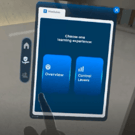
                                                                                    The Fuel System module includes two sections: Overview and Levers/Operation; which can be switched between using the tablet.  


                                                                                    Overview

                                                                                    • Open the tablet and select Overview.
                                                                                    • Review the engine gauges and control levers.
                                                                                    • Follow the guided visualization of the fuel flow process.
                                                                                    • Return to the tablet to continue into Levers/Operation.


                                                                                            Levers/Operation

                                                                                            • Open the tablet and select Levers/Operation.
                                                                                            • Operate the power, propeller, and fuel control levers.
                                                                                            • Observe how changes to the lever positions affect the engine gauges and engine performance.
                                                                                            • Return to the tablet to switch between sections as needed.