
Meta tools and device access are managed through the Meta Admin Center. To allow Attain to support your school’s environment, you’ll first create an external relationship, then review and approve the appropriate team access.
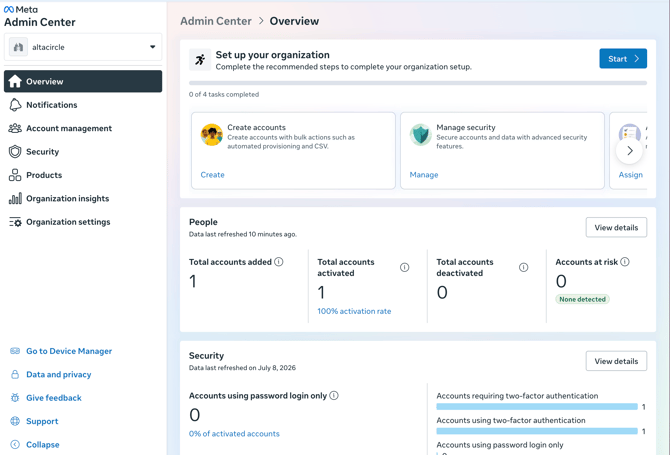
Step 1: Create the external relationship
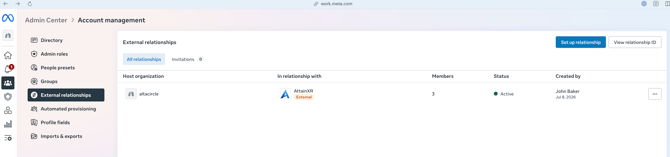
In Meta Admin Center, go to Account Management and select External Relationships. From there, choose Set up relationship to begin.
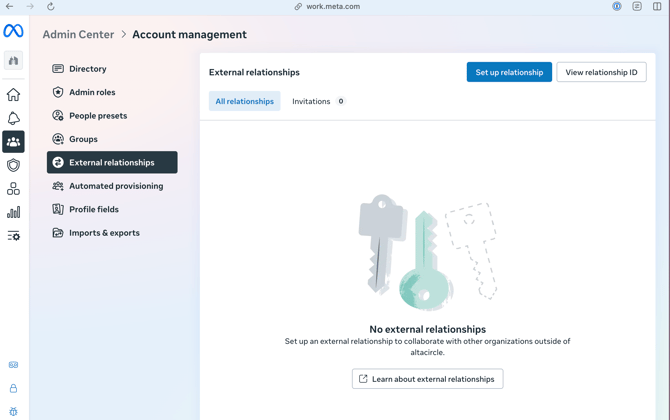
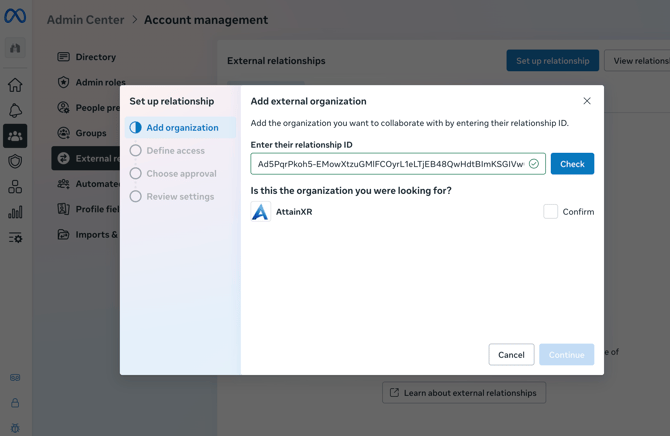
At this stage, Attain will provide you with a relationship ID. You will use that ID and confirm that it is Attain to add the relationship in Meta Admin Center.
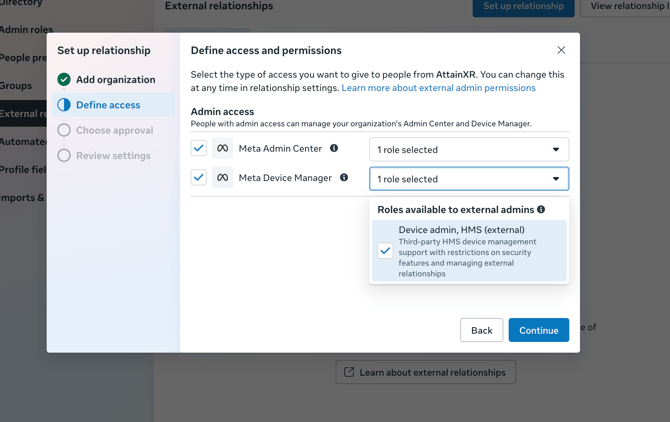
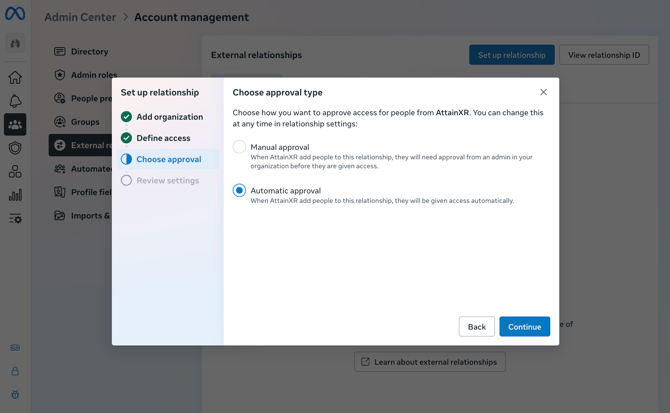
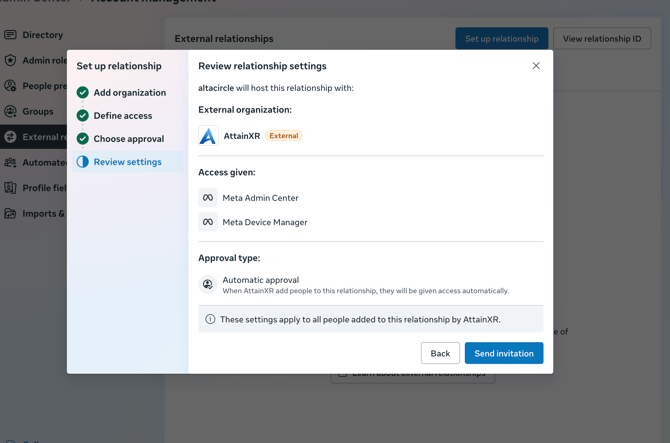
On this screen, the school can view the relationship details (team, rights) and edit the persmissions set for Meta Admin Manager and Meta Device Manager.
Team member additions can be handled either manually or automatically. We recommend enabling automatic approval when possible. This helps streamline setup while still allowing your school to view, manage, and remove access at any time through your directory and admin settings.
These settings can be changed at any time.
Step 2: Attain accepts the invitation and assigns team
Once the relationship ID has been entered and the invitation is sent, Attain will receive a notification that your school has requested the external relationship.
This creates the connection between your organization and Attain so the next step—adding a team member—can be completed.
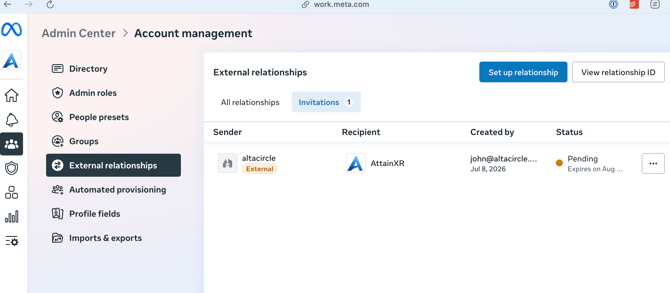
After the relationship is established, Attain will add a team member to your account through the external relationship.
Step 3: Confirmation of Team and Rights
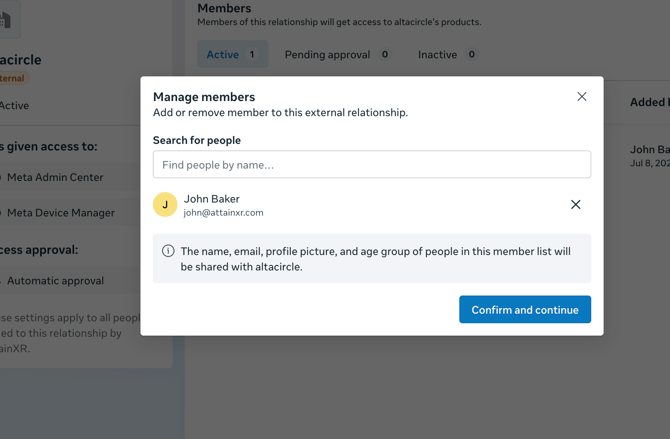
On the school’s account, you will be able to see the external relationship and the assigned team member in Meta Admin Center. From this screen, you can review the relationship details, including:
- The connected team
- The access rights that have been granted
- The assigned external member
These settings can be adjusted at any time.
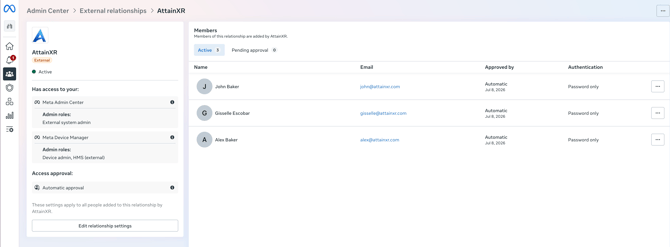
You can also edit the permissions associated with roles such as:
- Meta Admin Manager
- Meta Device Manager