Skip to content
English
  • There are no suggestions because the search field is empty.

How to Use the Aircraft Towing VR Application

Quick How-To Guide

What is the Aircraft Towing Application?

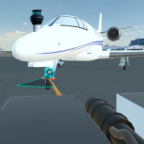
Aircraft Towing is an immersive virtual reality (VR) training application designed to introduce aircraft towing through interactive, hands-on learning. The application allows users to practice towing a Cessna Citation XLS using a tow vehicle across different scenarios in a full-scale virtual environment. Through instructional practice and evaluation, Aircraft Towing reinforces proper towing procedures, vehicle control, and safe aircraft positioning. 

Application Overview

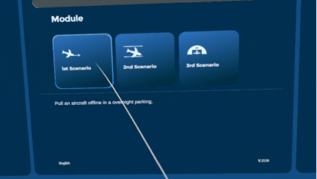
The Aircraft Towing app includes three scenarios that simulate different aircraft towing situations.
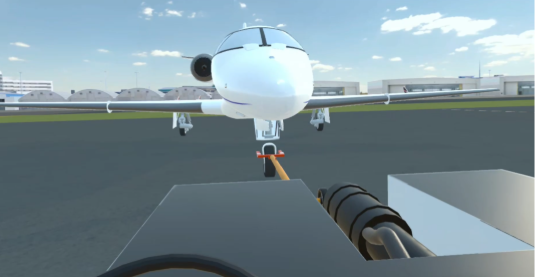


1st Scenario – For Departure  

Tow the aircraft into position for departure.  

2nd Scenario – Offline for Departure  

Tow the aircraft to an offline position in preparation for departure.

3rd Scenario – Into a Hangar for Maintenance  

Tow the aircraft into a hangar for maintenance.


1. Navigating the VR App

 These controls are used throughout the app for movement, interaction, and activity completion, and can be performed using the controllers. Hand tracking is not available for this experience.  

Move and Steer the Vehicle

  • Push the joystick forward to move the tow vehicle forward.
  • Pull the joystick backward to move the tow vehicle in reverse.
  • Use the joystick to adjust the steering direction while towing.
  • Press and hold the Grab button to apply the brake and slow down.


Use the Tablet

  • Press the A or X button to open or close the tablet.
  • Press and hold the Grab button to reposition the tablet.

      Release the Grab button to place the tablet in the desired position.


      Press Buttons and Menus

      • Reach your virtual hand toward a button or menu option.
      • Press and hold the Trigger to change your hand to a pointing pose
      • Point at the desired button, switch, or menu option.

            Tap the button to select.


            2. Access the Application

            Before entering the Aircraft Towing app, sign in to the QR Studio Platform on a computer. Once signed in, launch the application on the Meta Quest headset and connect to the session by entering the access code.  
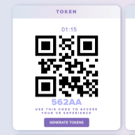
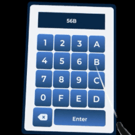
            • Switch to the Type your Code tab.
            • Locate the access code displayed below the QR code on the QR Platform
            • Input the access code using the virtual keyboard.
            • Select Enter to continue into the main menu.


            3.  Select a Scenario and Mode

             
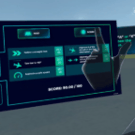
            • Select one of the available scenarios from the Main Menu: 1st Scenario, 2nd Scenario, or 3rd Scenario.
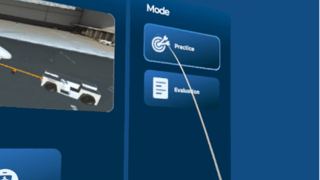
            • Next, select Practice or Evaluation.
            • Practice mode provides visual guidance, including a straight-line guide, while completing the towing procedure.
            • Evaluation mode removes the visual guidance and requires users to complete the towing procedure independently.
            • Select Go.


                      4.  Complete the Scenario

                      Once the scenario begins, follow the on-screen instructions to operate the tow vehicle and complete the towing procedure.  

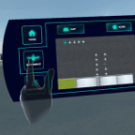
                      • Open the tablet to view the Map and Score tabs.
                        • Use the Map tab to view the starting position of the tow vehicle and aircraft, along with the destination.
                        • Select the Score tab to view the objectives used to evaluate the towing procedure, such as: Following the straight path, checking the tow bar angle, and maintaining a safe speed.
                      • Select the Start button next to the steering wheel to begin towing.
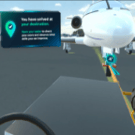
                      • Follow the guided path towards the destination.
                      • Tap the Done button once at the final destination.
                      • Review the Score tab after completing the scenario to view the final results.
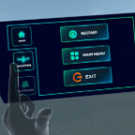
                      • After reviewing the Score, select the Home tab.
                        • Select Restart to attempt the scenario from the beginning.
                        • Select Main Menu to return and select another scenario.
                        • Select Quit to exit the application.