
What is the Meta Quest 3S?
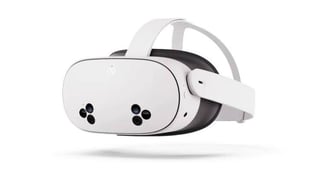
The Meta Quest 3S is the standalone VR headset used to run AttainXR applications. It works on its own, with no computer or cables needed while you use it. You control apps with the two Touch Plus controllers or with your hands.
This guide covers the headset and controllers, how to put the headset on and adjust it, the home screen where your apps live, and how to navigate and stay safe. Each AttainXR app also has its own How-To guide in this knowledge base.
Know Your Gear
The headset. The power button is on the left side, with the USB-C charging port on the strap. The volume and Action buttons are under the right side.
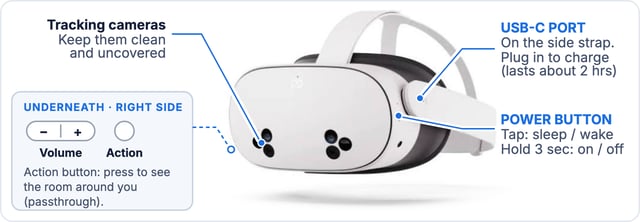
- Power button: tap to sleep or wake. Hold for 3 seconds to turn the headset on or off.
- USB-C port: plug in to charge. A full charge lasts about 2 hours.
- Action button: press to see the room around you (passthrough).
- Tracking cameras: keep them clean and uncovered so the headset can track your controllers and hands.
The controllers. Before you start, slip on the wrist straps. Each controller takes one AA battery.
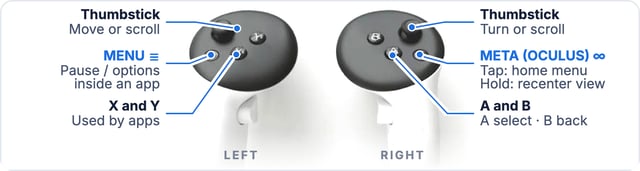

- Trigger (under your index finger): pull to select, like a mouse click.
- Grip button (under your middle finger): squeeze to grab objects.
- Meta button ∞ (right controller): tap to open the home menu. Hold to recenter your view.
- Menu button ☰ (left controller): pause or open options inside an app.
- Thumbsticks: move, turn or scroll. A selects and B goes back. X and Y are used by some apps.
Put It On and Adjust
|
1. Loosen the straps
2. Front first
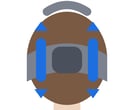
3. Tighten the back straps
|
 |
|
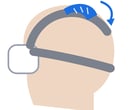
4. Adjust the top strap
Blurry? Move the headset up or down until text looks sharp. Then slide the lenses by their outer rims to the clearest setting. Glasses fit inside the headset. Put the front on first, over your glasses. |
 |
Your Home Screen
When the headset starts, you see the home screen. Your AttainXR apps are in the Content library, and the bar along the bottom holds the headset controls.
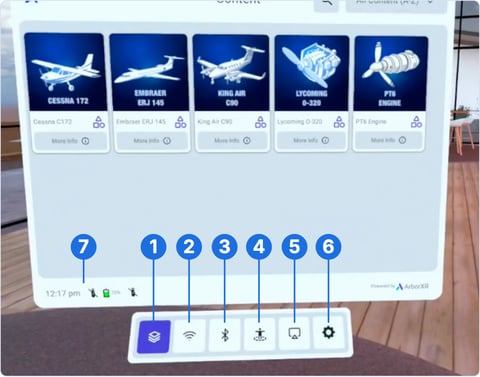
- Content: your apps (this screen).
- Wi-Fi: join or check the network.
- Bluetooth: pair headphones or other devices.
- Boundary: set up your safe play space.
- Cast: show your view on a TV or computer.
- Settings: volume, brightness and more.
- Status: the time and battery levels.
To open an app, point at its tile and pull the trigger. Select More Info to read about an app before you open it.
Navigating with Controllers or Hands
You can use the controllers or your hands. To switch to hands, set the controllers down and your hands appear in a few seconds. Pick up a controller to switch back. If your hands don't appear, turn on hand tracking in Settings.
| Action | With controllers | With hands |
| Point | Aim the controller. A laser appears. | Raise your hand, palm out. A ray appears. |
| Select | Pull the trigger. | Pinch your thumb and index finger. |
| Scroll | Push the thumbstick up or down. | Pinch, hold and drag. |
| Grab | Squeeze the grip button. | Pinch or close your hand (varies by app). |
| Menu / exit | Press the Meta button, then Quit to leave an app. | Look at your palm and pinch the icon. |
| Recenter | Press and hold the Meta button. | Look at your palm, then pinch and hold. |
| Move in apps | The thumbsticks move or turn you (varies by app). | Many apps need controllers to move. |
Stay Safe and Comfortable
- Clear your space. Set the boundary when asked and stay inside it.
- Keep it out of direct sunlight. Sun through the lenses can permanently damage the screens.
- Take breaks every 20–30 minutes, or right away if you feel dizzy.
- Clean the lenses with a dry microfiber cloth only. No liquids.
Asked to Sign In?
|
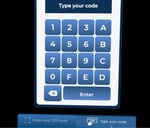
Some apps ask you to sign in with a code.
|
 |
Need help? Ask your instructor or admin.