Skip to content
English
  • There are no suggestions because the search field is empty.

How to Use the Embraer ERJ 145 Familiarization VR Application

Quick How-To Guide

What is the Embraer ERJ 145 Application?

The Embraer ERJ 145 application allows students to explore a full-scale virtual Embraer ERJ 145 aircraft. Students can walk around the aircraft and learn about its major systems, components, and their functions through guided instruction. 

Application Overview

The Embraer ERJ 145 application contains one learning module.  
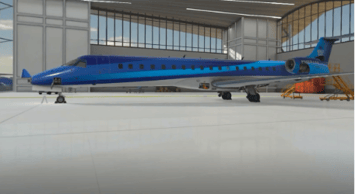


Familiarization

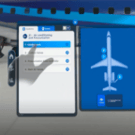
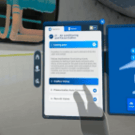
The Familiarization module introduces users to the Embraer ERJ 145 aircraft and its major systems and components. Using the in-app tablet, users can select an ATA system, locate it on the aircraft, and learn about its function and potential failure implications.  

ATA Systems Covered

  • ATA 5–12 – Aircraft General
  • ATA 21 – Air Conditioning and Pressurization
  • ATA 23 – Communications
  • ATA 24 – Electrical Power
  • ATA 25 – Equipment and Furnishings
  • ATA 26 – Fire Protection
  • ATA 27 – Flight Controls
  • ATA 28 – Fuel System
  • ATA 29 – Hydraulic Power
  • ATA 30 – Ice Detectors
  • ATA 31 – Indicating and Recording
  • ATA 32 – Landing Gear
  • ATA 33 – Lights
  • ATA 34 – Navigation
  • ATA 35 – Oxygen
  • ATA 36 – Pneumatic
  • ATA 49 – Auxiliary Power Unit (APU)
  • ATA 51–57 – Structures
  • ATA 71–80 – Power Plant


                                        1. Navigating the VR App

                                        These controls are used throughout the app for movement, interaction, and activity completion, and can be performed using either the controllers or with hand tracking.

                                        Move Around the Environment

                                        Using Controllers:
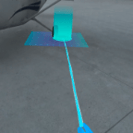
                                        • Push forward on the thumbstick to activate teleportation.
                                        • Aim at your desired location — a blue circle shows where you land.

                                            Release the thumbstick to move to that location.


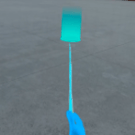
                                            Using Hand Tracking:
                                            • Hold your palm facing upward.
                                            • Point toward the floor with your index finger.
                                            • Aim at your desired location — a blue circle shows your destination.

                                                  Wait for it to load to move to that location.


                                                  Using the Tablet

                                                  Using Controllers:
                                                  • Press the A or X button to open or close the tablet.
                                                  • Press and hold the Grab button to reposition the tablet.

                                                      Release the Grab button to place the tablet in the desired position.


                                                      Using Hand Tracking:
                                                      • Hold your palm facing toward you to open or close the tablet.
                                                      • Wait for the loading indicator to complete.
                                                      • Grab the side of the tablet and move it to the desired position.
                                                      • Release the tablet to place it in position.

                                                              Release the tablet to place it in position.


                                                              Press Buttons & Menus

                                                              Using Controllers:
                                                              • Reach your virtual hand toward a button or menu option.
                                                              • Press and hold the Trigger to change your hand to a pointing pose

                                                                    Tap the button to select.


                                                                    Using Hand Tracking:
                                                                    • Point at the desired button, switch, or menu option.
                                                                    • Extend your index finger toward the button.

                                                                      Tap the button to select.


                                                                      2. Access the Application

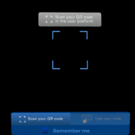
                                                                      Before entering the Embraer app, sign in to the QR Studio Platform on a computer. Once signed in, launch the application on the Meta Quest headset and connect to the session by either scanning the QR code or manually entering the access code.  
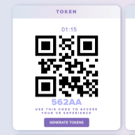
                                                                      Option 1 – Scan your QR Code (Recommended)
                                                                      • Ensure the QR Platform remains open and displays the QR code.
                                                                      • Launch Embraer on the Meta Quest headset.
                                                                      • If prompted, select Allow to grant permission for PT6 to access Spatial Data and the Headset Camera. This enables the headset to view and scan the QR code displayed on the computer screen.
                                                                      • Look at the QR code through the headset to scan it automatically.
                                                                      • Once the QR code has been recognized, the application will continue to the main menu.


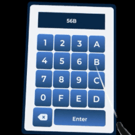
                                                                                Option 2 – Type your Code
                                                                                • Switch to the Type your Code tab.
                                                                                • Locate the access code displayed below the QR code on the QR Platform
                                                                                • Input the access code using the virtual keyboard.
                                                                                • Select Enter to continue into the main menu.


                                                                                        3.  Complete the Familiarization

                                                                                        The Familiarization module allows students to explore the Embraer ERJ 145 and learn about its major systems and components.
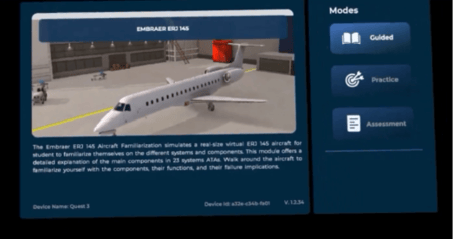
                                                                                          

                                                                                        Guided
                                                                                        • Select Guided from the main menu.
                                                                                        • Follow the on-screen visual and audio instructions as you explore the aircraft.
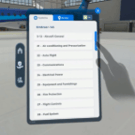
                                                                                        • Open the tablet to view the list of available ATA chapters.
                                                                                        • Select an ATA chapter, then choose a highlighted location on the aircraft map to begin learning about that system.
                                                                                        • Move to the highlighted component and review its function and failure implications.
                                                                                        • Continue using the tablet to navigate between ATA chapters throughout the experience.
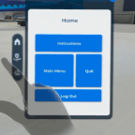
                                                                                        • When finished, open the tablet and select the Home tab. From there, you can return to the main menu, log out, or quit the application.